pCloud: Cloud Storage
- 4.6
- Rating
- 5.00M
- Installs
- Free
- Price

 Analysis by App-foxy
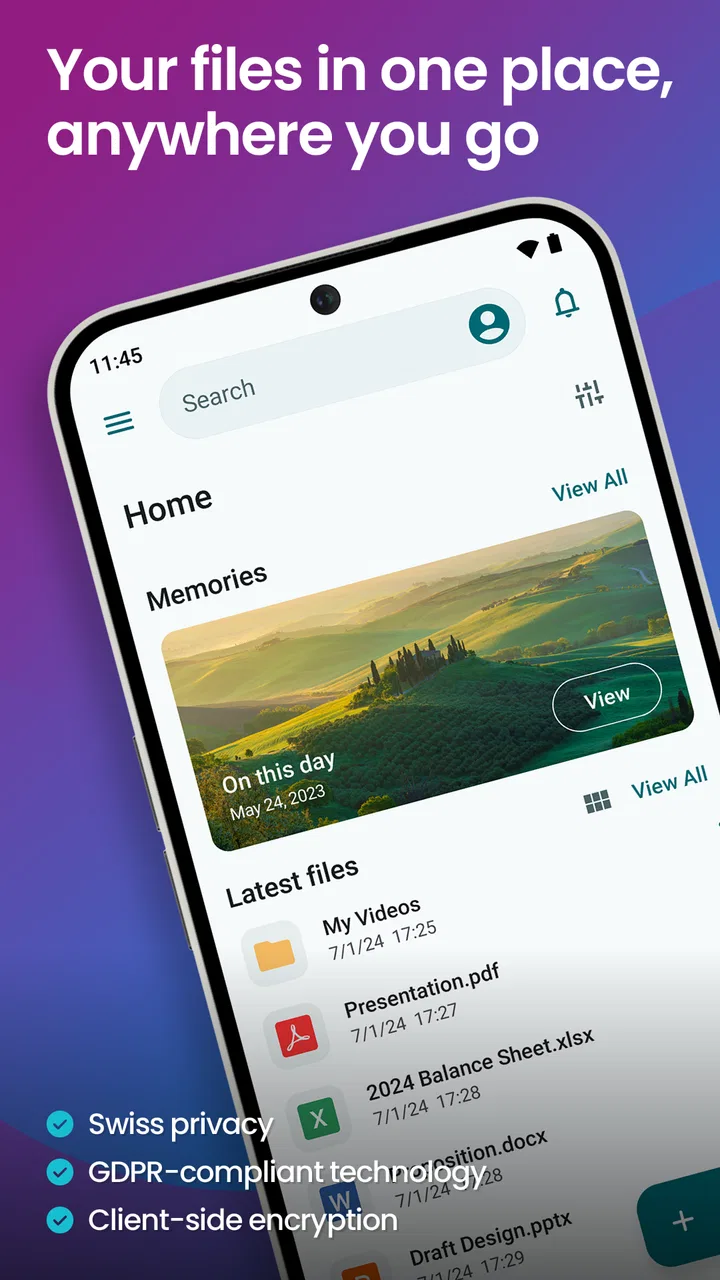
I have always found cloud storage most useful when it removes small daily annoyances rather than when it tries to do everything at once. pCloud takes that practical route: it gives me a place to reach files, save photos and videos, share items, and play stored audio from one mobile app. That makes it a productivity tool first, not just a backup button.
My overall impression is positive, especially for someone who moves between a phone, a tablet, and a computer or regularly needs to send large personal files. The app is free to install, suitable for Everyone, and developed by pCloud LTD. It has reached over five million installs and holds a 4.6 average from around ninety-four thousand ratings, which suggests that its basic purpose is clear to a large audience. Still, cloud storage becomes frustrating when a file appears missing, a photo upload pauses, or a share action behaves differently from what you expected. The useful question is not simply whether the app works, but whether its workflow fits the way you handle files.
Where the everyday friction usually begins
The first point where I would expect a new user to hesitate is the difference between seeing a file on a phone and having that file safely available in the cloud. Opening a document from another app does not automatically mean it has been uploaded to your pCloud space. I treat the app as a destination: I deliberately choose what to upload, where to place it, and whether I want a local copy for offline access. That simple distinction prevents a lot of confusion later.
You May Also Like

 Pandora - Music & Podcasts
Pandora’s Music Is Easy to Start, but Harder to Recover
Pandora’s strength is its low-effort path from a seed to a station. Its weak spot is how much confidence it asks you to place in connection, setup, and quiet recovery.

 8 Ball Pool
 Is Built on Rivalries, Rematches, and Routine
A close look at the rivalries, rematches, shared routines, and unanswered safety questions that turn a quick pool match into a persistent mobile community.

 Samsung Music
’s Quiet Strength Is Playing What You Already Own
Its reach comes less from spectacle than from dependable access to a personal library. That simplicity is both the app’s strongest retention engine and its ceiling.

 AccuWeather: Weather Radar
AccuWeather Review: A Quick, Clear Forecast for Everyday Decisions
For everyday plans, the best forecast is the one you can understand quickly. AccuWeather makes rain timing, radar, and local conditions easy to act on, with a few trade-offs.

 Hill Climb Racing
Why Hill Climb Racing Still Turns Crashes Into One More Run
A tiny car, a bumpy hill and one more upgrade: Hill Climb Racing keeps resurfacing because its simple chaos makes every near-miss feel personal.

 AliExpress - Shopping App
AliExpress Makes Global Shopping Feel Personal, but Shoppers Bear the Risk
AliExpress turns a global marketplace into a pocket-sized discovery engine. Its reach is useful, its shopping loop compelling, and its trade-offs easy to miss.
More From Our News Desk
View All News


Photos and videos create a second area of friction. A large camera library can take time to organize and transfer, particularly when the phone is busy or the connection changes. If an item is not visible immediately, I first check the destination folder and the upload activity rather than starting the process again. Repeatedly tapping upload can create duplicates and makes it harder to tell which copy is current. My preferred habit is to upload in manageable groups, confirm that they appear in the intended folder, and then continue.
Sharing can also feel less obvious than saving. A file inside cloud storage is not necessarily shared with another person until I use the sharing action for that item. Before sending anything, I check the exact file or folder selected, because a share link to a folder has a different practical result from a link to one document. For work or family use, clear folder names matter more than people expect. “Trip photos” or “Tax documents” is easier to understand than a camera-generated filename when I return to it weeks later.
The built-in audio player is a particularly nice touch for people who keep music, recordings, or spoken files in the cloud. I would not confuse it with a full music service, though. Its value is that audio already stored in my account can be played without opening a separate file-management app. That is convenient for personal collections, language practice files, or recordings that I want available across devices.
What I check before blaming the app
When something seems wrong, I begin with four basic questions: am I looking in the correct folder, am I signed into the intended account, has the upload actually finished, and is the item stored locally or only online? These checks sound obvious, but they explain many “missing file” situations. A file can be present in the cloud while not being downloaded to the current device, or it can be available locally while the cloud copy is still waiting to upload.
I also pay attention to filenames. Phones often create similar names for images, while messaging apps may save edited copies beside originals. If I am searching for one particular image, sorting mentally by date is not always enough. I use a folder structure and rename important files early. That is one of the best ways to make a cloud account remain useful instead of becoming a second, more confusing camera roll.
Another practical issue is storage planning. The app is free, but optional in-app purchases range from $2.49 to $449.00 per item. I would not decide on an upgrade simply because an upload failed; a connection problem, an incorrect folder, or an incomplete transfer can look like a storage problem. I first inspect what is already in the account and remove unnecessary duplicates. Only then does it make sense to consider whether a paid option suits my long-term needs.
Setup checks that save time later
My setup routine is deliberately slow for the first few minutes. I sign in, create a small set of folders, and upload a few test files rather than immediately sending my entire photo library. I then open those files from the account and test sharing with a harmless document. This confirms that I understand the basic path from phone to cloud to another person before I rely on it for important material.
I also test one file from another device when possible. The point is not to measure speed; it is to confirm that I am using the same account and that the file is genuinely stored online. A quick test catches account mix-ups early, especially when a person has separate personal and work logins.
For photos and videos, I choose a clear destination before starting a large transfer. I avoid mixing automatic camera uploads with manually selected copies until I know how I want my library arranged. If both approaches are used without a plan, duplicates are easy to create. A useful workflow is to keep a dedicated camera folder for automatic material and separate folders for finished albums or projects.
File access also deserves a deliberate decision. If I need a document during travel or in a place with unreliable connectivity, I make sure it is available on the device beforehand. Cloud access and offline access are not the same thing. This is one of the most important habits for students, commuters, and anyone who expects to work away from a stable connection.
The current version is 4.23.0 and the app requires Android 8.0 or later. On a compatible phone, I would still keep the operating system and the app reasonably current before troubleshooting. Updating is not a guarantee that every problem disappears, but it removes an avoidable variable. If a device is older than the minimum requirement, I would not build an important workflow around it without first checking compatibility through the normal app store process.
Recovering a workflow after an interrupted upload
When an upload stops halfway, I resist the urge to delete everything immediately. I first look for files that already arrived, compare the cloud folder with the phone’s source folder, and continue only with the items that are genuinely absent. This takes a little longer than pressing “upload all” again, but it avoids duplicates and preserves a clearer record of what happened.
For a large video, I use a stable connection and leave the app enough time to complete the transfer. If the phone changes networks or becomes busy with other tasks, I treat the transfer as potentially incomplete until I can open the file from the cloud. A visible filename is not enough confirmation for an important recording; successful playback or opening gives me much more confidence.
If a document opens on one device but not another, I compare the file itself before assuming a synchronization failure. It may be an incomplete local copy, a format issue, or an app on the second device that cannot handle that file type. I also check whether I am viewing an online item or a downloaded copy. This distinction helps me decide whether to re-download, re-upload, or use a different app to open the file.
Sharing problems benefit from the same calm approach. I recreate the action from the actual file location, verify that the intended item is selected, and send a fresh share link rather than forwarding an old message. If the recipient cannot open it, I ask whether the problem affects one file or every file. That separates a bad selection from a broader account or connection issue.
My most useful recovery habit is keeping the original files until the cloud copy has been checked. I do not free phone space immediately after starting a transfer. Once I have opened the cloud version and confirmed that the important photos, videos, or documents are there, I can safely decide what to remove from local storage. This is especially important for irreplaceable family photos and work recordings.
When the app is not the cause
Cloud storage depends on more than the storage app. A weak or changing connection can interrupt transfers, while limited device space can prevent a local copy from being created. Battery-saving behavior may also affect how long a background task continues. I do not treat every pause as evidence that the service has lost a file. Instead, I repeat a small test with one file and observe whether the same behavior occurs.
Account confusion is another frequent culprit. If a file was uploaded under one login and I later open another account, the app can appear empty even though nothing was deleted. I check the account identity before changing folders or repeating uploads. This is a simple step, but it is essential when several people use the same phone or when personal and work accounts are both involved.
There is also a difference between a cloud backup and a complete device backup. pCloud is well suited to selected files, photos, videos, and audio that I want to access or share. I would not assume that placing a few folders in the cloud reproduces every setting, message, or app state on a phone. Someone looking for a full device restoration system may be better served by the platform’s dedicated backup tools or a service designed specifically for that purpose.
Privacy expectations should be part of the decision too. I use cloud storage for convenience and access, but I think carefully before placing highly sensitive material there. For confidential work, I may encrypt files separately before uploading them, provided the recipient can handle that workflow. That adds friction, so it is not ideal for casual sharing, but it reflects the trade-off between easy access and stronger personal control.
How it compares with familiar alternatives
Compared with using only a phone’s built-in file manager, pCloud gives me a clearer cross-device home for files and a straightforward way to share them. A local file manager is faster for items already on the phone, but it does not by itself solve access from another device. The cloud app earns its place when I need continuity rather than merely storage in the moment.
Compared with a photo-only backup service, its broader file handling is the main advantage. I can keep documents, videos, and audio alongside images instead of dividing my personal material among several specialized apps. The trade-off is that a general file system requires more organization. If my only goal is effortless camera backup, a service built entirely around photos may feel more automatic.
It also differs from collaboration-first platforms. Services centered on office documents can be stronger when several people are editing the same file, commenting, or managing a shared work process. I see pCloud as a better fit for personal storage, straightforward sharing, and media access than for a complex team workspace. That distinction matters before a small business adopts it as its only file system.
The integrated audio player gives it an advantage over very basic storage apps for people who keep audio files online. However, listeners who want discovery, subscriptions, or a large streaming catalog should use a dedicated music service instead. pCloud’s player is useful because of the files I already own, not because it replaces a streaming platform.
Who will appreciate it, and who should skip it
I would recommend it to students carrying lecture recordings and assignments between devices, families organizing photos and videos, freelancers sending project files, and anyone who wants one account for mixed personal media. The free entry point makes it easy to test the workflow before committing to a larger storage plan. Its Everyone age rating also makes it approachable for general household use, although adults should still make sensible decisions about what they share.
A realistic example is a family trip. I can create a trip folder, upload selected photos and videos, keep the originals until the transfer is confirmed, and share the folder with relatives. Later, I can play a stored audio recording from the same account or open a document from another device. The benefit is not one spectacular feature; it is having several everyday file types in one place without sending each item through a different service.
I would hesitate to recommend it to someone who wants completely invisible, automatic organization and never wants to think about folders. I would also steer away from using it as the sole answer for advanced team collaboration, full-device restoration, or a professional media library with specialized cataloging. In those cases, a more focused alternative may reduce manual decisions.
People with limited connectivity should plan carefully. The app can still be useful, but I would prepare essential files for local access before leaving reliable coverage. Likewise, anyone with a nearly full phone should avoid assuming that cloud storage instantly creates local space; the original files may remain on the device until I deliberately manage them.
My practical verdict after using the workflow
What I like most is the balance between ordinary file storage and useful media handling. Accessing files, sharing them, backing up photos and videos, and playing stored audio cover a wide range of personal tasks without making the app feel like a complicated business system. The experience is strongest when I establish a folder plan and confirm transfers instead of treating the cloud as an invisible magic drawer.
The main limitation is not a missing headline feature but the responsibility placed on the user. I need to understand whether an item is online or local, avoid duplicate uploads, protect originals until transfers finish, and choose the right tool for sensitive or collaborative work. Those are manageable habits, but users who want every decision automated may find them tiring.
With a free price, a mature release history dating back to September 11, 2013, and a current version that supports Android 8.0 and later, it is a sensible app to try for general cloud storage. Optional purchases run from $2.49 to $449.00 per item, so I would begin with a small, realistic test rather than upgrading on impulse. The best reason to choose pCloud is dependable access to your own mixed collection of files, not the promise of replacing every other backup or productivity tool.
My recommendation is therefore clear but conditional: choose it if you want a practical home for documents, photos, videos, and audio, and are willing to keep your folders organized. Test one upload, one download, and one share before trusting it with a large library. If that simple loop feels natural, the app can become a useful part of daily life. If you need fully automatic photo management, deep team editing, or complete device recovery, I would look at a more specialized option instead.
FAQs for pCloud: Cloud Storage
01What is pCloud: Cloud Storage, and what can I use it for?
pCloud is a cloud storage app for Android and iOS that lets you upload, organize, access, and share files from your phone, tablet, or computer. During testing, it worked well for storing photos, videos, documents, music, and other personal files in one place. It is useful for backups, freeing device space, synchronizing folders, and accessing important content while traveling or working remotely.
02Is pCloud: Cloud Storage free to download and use?
The pCloud app can be downloaded for free, but the free account includes limited storage and some features may require a paid plan. Users can upgrade to a monthly or annual subscription, while pCloud may also offer lifetime storage plans depending on the region and current promotion. Before subscribing, check the exact storage capacity, pricing, renewal terms, and included features shown in the app or official store listing.
03How secure is pCloud for storing personal files?
pCloud uses account protection and encrypted data transfers to help keep files secure, but users should still enable a strong password and two-factor authentication when available. The optional pCloud Encryption feature provides an additional privacy layer for selected files, although it may be offered separately from standard storage plans. People handling highly sensitive information should review the encryption terms carefully before relying on the service.
04Can pCloud automatically back up photos and synchronize files across devices?
Yes, pCloud can be used to back up photos and upload files from a mobile device, while desktop applications can synchronize selected folders between a computer and the cloud. In practical use, the experience depends on your internet connection, available storage, battery settings, and permissions granted to the app. It is advisable to configure automatic uploads over Wi-Fi if you want to reduce mobile data consumption.
05Can I access pCloud files offline and share them with other people?
pCloud allows users to make selected files available offline, which is helpful when traveling or working without a reliable connection. Files and folders can also be shared through links, and some sharing options may include permissions, expiration settings, or download controls depending on the plan. Offline copies still occupy space on your device, so remember to remove them when they are no longer needed.
Pros
- Generous free storage tier for basic file backups and sharing.
- Strong cross-platform support across Android
- iOS
- desktop
- and web.
- Built-in media playback makes accessing music and videos convenient.
- File versioning helps recover accidentally deleted or overwritten content.
- Easy link sharing with optional passwords and expiration dates.
Cons
- Advanced encryption requires the separate pCloud Encryption add-on.
- Some premium features are limited or unavailable on mobile devices.
- Upload and download speeds can vary depending on server location.
- Large offline folders may consume considerable phone storage.
- Lifetime plans require a high upfront payment despite long-term savings.

pCloud: Cloud Storage
Gallery